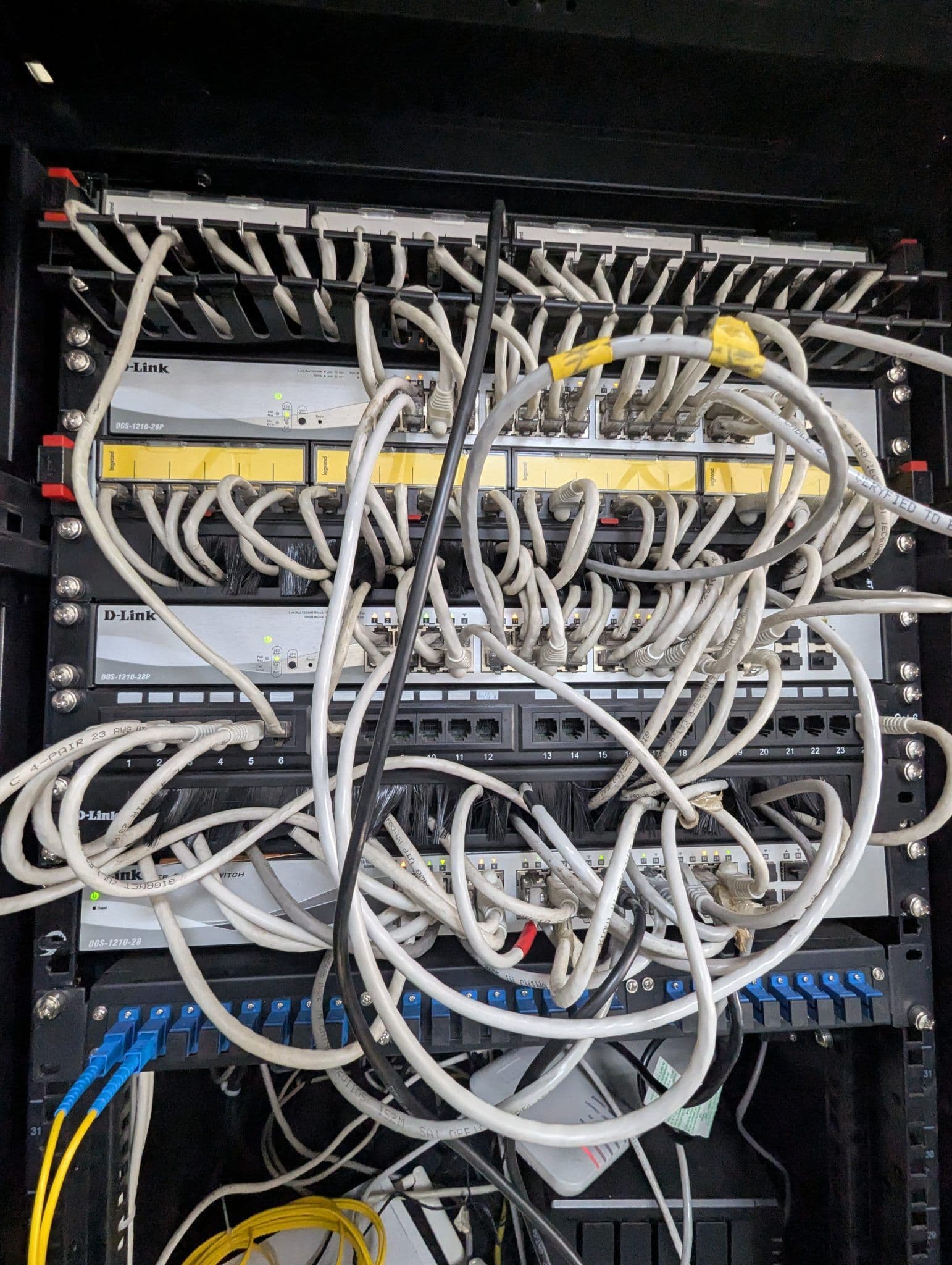
Picture this: you've just launched your brand new website, full of excitement, only to visit it and be greeted by a cryptic error message instead of your beautiful content. It's a frustrating, often panic-inducing moment for any website owner. While these error codes might look like a foreign language, they're actually helpful signals from your server, trying to tell you what went wrong. Understanding these common web hosting errors – specifically 500, 403, and 404 – and knowing how to approach them can save you a lot of stress, time, and potentially money.
You don't need to be a seasoned developer or an IT guru to tackle these issues. Most of the time, the solutions involve straightforward checks and minor adjustments that anyone with access to their hosting control panel or FTP client can perform. This guide will walk you through the most common causes for each of these errors and provide you with a practical, step-by-step approach to diagnose and fix them, getting your website back online and serving your visitors in no time.
Understanding the Language of Errors: Server vs. Client
Before we dive into specific errors, it's helpful to understand a basic distinction: server-side versus client-side errors. When you type a website address into your browser, your computer (the client) sends a request to the website's server. The server then processes this request and sends back the website's content. An error code indicates that something went wrong during this communication process.
Client-side errors (like a 404) generally mean there's an issue with the request itself, often something you, the user, did or something related to the specific resource you're trying to access. Server-side errors (like a 500 or 403), on the other hand, indicate that the server encountered a problem while trying to fulfill a valid request. Knowing this distinction can sometimes give you an immediate clue about where to start looking for a solution.
General First Steps for Any Website Error
No matter what error code you're seeing, there are a few universal troubleshooting steps you should always take first. These can often resolve simple glitches before you dive into more complex diagnostics.
- **Clear your browser cache and cookies:** Sometimes, your browser stores old or corrupted versions of a page, causing it to display an error even if the live site is fine. A quick clear can often resolve this.
- **Try a different browser or device:** Similar to clearing cache, testing on another browser (Chrome, Firefox, Safari, Edge) or even your phone can help determine if the problem is specific to your setup or universal.
- **Check your internet connection:** It might sound obvious, but ensure your own internet connection is stable. Try visiting other websites to confirm.
- **Verify domain propagation:** If you've recently changed your domain's DNS settings, it can take anywhere from a few minutes to 48 hours for these changes to fully update across the internet. Tools like `whatsmydns.net` can help you check.
- **Contact your web host's support (briefly):** A quick check with your host's status page or a brief message to support can confirm if there's a wider server issue affecting multiple clients. Don't immediately assume the worst; sometimes it's out of your hands.
Error 500: Internal Server Error – The Mysterious Code
The 500 Internal Server Error is arguably the most frustrating because it's so vague. It simply tells you that the server encountered an unexpected condition that prevented it from fulfilling the request. It's like your car's 'check engine' light – it tells you there's a problem, but not what it is. For website owners, this usually points to a script or server configuration issue.
Common Causes of a 500 Error:
- **Corrupted .htaccess file:** This hidden file controls many aspects of your server's behavior, like redirects and permalinks. A small typo can break your site.
- **PHP memory limit exhaustion:** Your website's scripts (especially if using WordPress or other CMS) might be trying to use more memory than your hosting plan allows.
- **Faulty plugins or themes:** A recently installed or updated plugin/theme can introduce incompatible code, causing the server to crash.
- **Incorrect file permissions:** Files and folders on your server need specific permissions to be read and executed. Incorrect settings can trigger a 500 error.
- **Syntax errors in CGI/Perl scripts:** If you're running custom scripts, a small coding mistake can bring down your site.
Troubleshooting Steps for 500 Error:
The key to fixing a 500 error is often isolating the cause. This involves a process of elimination:
**1. Check your server error logs:** This is your absolute first stop. Most hosting control panels (like cPanel) have a section for 'Error Logs' or 'Raw Access Logs.' These logs will often give you a much more specific message about what caused the 500 error, pointing to a specific file or line of code. This information is invaluable for pinpointing the problem.
**2. Rename your .htaccess file:** Connect to your server via FTP or use your hosting's File Manager. Locate the `.htaccess` file in your website's root directory (e.g., `public_html`). Rename it to something like `.htaccess_old`. Then, try loading your site. If it loads, your `.htaccess` file was the culprit. You can then try generating a new one (e.g., in WordPress, go to Settings > Permalinks and just click 'Save Changes' without making any actual changes) or carefully review the old one for errors.
**3. Increase PHP memory limit:** If your error logs mention 'allowed memory size exhausted,' you'll need to increase your PHP memory limit. You can often do this through your hosting control panel's 'PHP Selector' or by adding a line like `define('WP_MEMORY_LIMIT', '256M');` to your `wp-config.php` file (for WordPress sites) or `php.ini` file. Consult your host's documentation or support if unsure.
**4. Disable plugins/themes (for CMS users):** If you recently installed or updated a plugin or theme, that's a likely cause. Access your server via FTP or File Manager. Navigate to your `wp-content` folder (for WordPress) and rename the `plugins` folder to `plugins_old`. This will disable all plugins. If your site comes back, rename it back to `plugins` and then go into your WordPress admin to reactivate plugins one by one until you find the problematic one. Do the same for themes if plugins aren't the issue.
**5. Check file and directory permissions:** Incorrect permissions are a frequent cause. Files should generally be set to `644` (read/write for owner, read-only for group/others) and directories to `755` (read/write/execute for owner, read/execute for group/others). You can check and change these via your FTP client or File Manager. Be careful not to apply incorrect permissions to critical system files or your entire site root, as this can create new problems.
Error 403: Forbidden – You Don't Have Permission
A 403 Forbidden error means the server understood your request but explicitly refused to fulfill it. It's like knocking on a door and being told, 'You're not allowed in.' This is a security-related error, indicating that you don't have the necessary authorization or access rights to view the requested resource.
Common Causes of a 403 Error:
- **Incorrect file or directory permissions:** This is the most common reason. If a file or directory isn't readable by the web server, it will deny access.
- **Missing index file:** If a directory doesn't have an `index.html`, `index.php`, or similar default file, and directory browsing is disabled (which it should be for security), the server will show a 403.
- **IP address restrictions:** Your website's `.htaccess` file or server configuration might be blocking your IP address or a range of IP addresses for security reasons.
- **Mod_security rules:** Some web hosts use `mod_security` to prevent common attacks. Sometimes, a legitimate action might trigger a `mod_security` rule, resulting in a 403.
Troubleshooting Steps for 403 Error:
**1. Check file and directory permissions (again!):** This is by far the most likely cause. Ensure your files are `644` and directories are `755`. Pay special attention to the root directory of your website (`public_html` or `www`) and any subdirectories or files mentioned in your error logs (if available). You can usually set permissions recursively for directories using your FTP client or File Manager, but use caution.
**2. Verify the presence of an index file:** Navigate to the directory where the 403 error occurs (e.g., your site's root). Ensure there's a file named `index.html`, `index.php`, or similar (check your host's default index file names) present and correctly spelled. If it's missing, upload one.
**3. Review your .htaccess file for IP restrictions:** Open your `.htaccess` file and look for lines like `Deny from all` or `Order Deny,Allow` followed by specific IP addresses. If you see rules that might be blocking your IP, comment them out (add a `#` at the beginning of the line) or remove them temporarily to test. Also, check for any `mod_rewrite` rules that might be misconfigured.
**4. Contact your host about Mod_security:** If the above steps don't work, and you suspect `mod_security` is involved, contact your web host. They can check their server logs for `mod_security` blocks and potentially whitelist specific rules or your IP address if it's a false positive.
Error 404: Not Found – The Missing Page
The 404 Not Found error is probably the most common and least severe of the three. It means the server couldn't find the resource you requested. It's like asking for a book at the library, and they tell you it's not on the shelf. While annoying, it often points to a simple typo or a broken link.
Common Causes of a 404 Error:
- **Typo in the URL:** The most straightforward cause. A simple misspelling in the address bar or a link.
- **Broken internal or external links:** A link on your site (or another site linking to yours) might point to a page that no longer exists or has moved.
- **Deleted or moved content:** You might have deleted a page or post, or changed its URL without setting up a redirect.
- **Issues with permalinks (CMS users):** For WordPress and similar CMS, an issue with `mod_rewrite` or your permalink settings can cause all internal links to break.
- **Incorrect .htaccess rewrite rules:** Your `.htaccess` file might have incorrect rules that are redirecting requests to non-existent pages.
Troubleshooting Steps for 404 Error:
**1. Double-check the URL:** Seriously, this fixes more 404s than you'd think. Carefully compare the URL in your browser to the intended URL. Look for typos, extra characters, or missing hyphens.
**2. Test other links on your site:** If it's just one page, it's likely a specific issue with that page. If multiple or all internal links are showing 404s, the problem is more systemic (e.g., permalink structure).
**3. Restore permalinks (for WordPress users):** If you're using WordPress and getting 404s on all your internal pages (but not the homepage), go to your WordPress Dashboard > Settings > Permalinks. Without changing anything, simply click 'Save Changes.' This often regenerates your `.htaccess` file and fixes the issue.
**4. Check for deleted or moved content:** Did you recently delete the page or post that's returning the 404? If so, you should consider setting up a 301 redirect from the old URL to a relevant new page (or your homepage) to preserve SEO and user experience. Most hosting panels or CMS plugins offer redirect tools.
**5. Inspect your .htaccess file for rewrite rules:** If you've manually edited your `.htaccess` file for redirects or custom rules, check for any misconfigurations. Incorrect `RewriteRule` or `RewriteCond` directives can easily lead to 404s. As with the 500 error, you can try temporarily renaming it to see if that resolves the issue.
When to Call for Backup: Contacting Your Web Host
Even with this guide, there will be times when you hit a wall. That's perfectly normal, and it's precisely why you have a web hosting provider! Don't hesitate to reach out to their support team. When you do, be prepared with as much information as possible:
- **The exact error message/code you're seeing.**
- **The specific URL(s) where the error occurs.**
- **What steps you've already taken to troubleshoot (e.g., 'I checked permissions, renamed .htaccess, and cleared my cache').**
- **When the error started occurring (after an update, a new plugin install, etc.).**
- **Any relevant entries from your server error logs (if you found any).**
Providing detailed information will help their support team diagnose and resolve your issue much faster. Most reputable hosts have knowledgeable support staff who deal with these errors daily.
Preventative Measures: Keeping Errors at Bay
An ounce of prevention is worth a pound of cure, especially with website errors. Here are some habits to adopt to minimize your chances of encountering these common issues:
- **Regular Backups:** Always, always have recent backups of your website. Before making any significant changes (updates, new plugins, theme edits), perform a fresh backup. Many hosts offer automated backups, but knowing how to restore one manually is also crucial.
- **Test Changes on a Staging Site:** If your host offers a staging environment, use it! This allows you to test updates, new features, or code changes in a safe environment before pushing them live.
- **Keep Software Updated:** Regularly update your CMS (WordPress, Joomla, etc.), themes, and plugins. Developers often release updates to fix bugs and security vulnerabilities, which can also prevent errors.
- **Use Reputable Plugins/Themes:** Stick to well-reviewed, actively maintained plugins and themes from trusted sources. Poorly coded extensions are a common source of conflict and errors.
- **Monitor Your Website:** Use uptime monitoring services (many free options exist) that alert you immediately if your site goes down. This allows you to catch errors early.
- **Review .htaccess Edits Carefully:** If you manually edit your `.htaccess` file, double-check every character. Even a single misplaced character can cause a site-wide error. Always save a copy of the original before making changes.
Key Takeaways
Web hosting errors are an inevitable part of managing a website, but they don't have to be a nightmare. By understanding the common causes of 500, 403, and 404 errors and following a methodical troubleshooting process, you can quickly get your site back on track. Remember to start with basic checks, consult your error logs, systematically investigate common culprits like `.htaccess` files and permissions, and don't hesitate to lean on your web host's support when needed. With a little patience and this guide, you'll be troubleshooting like a pro in no time!
Sources & Further Reading
- HTTP response status codes — MDN Web Docs
- List of HTTP status codes — Wikipedia
- Apache HTTP Server Tutorial: .htaccess files — Apache HTTP Server
- Apache HTTP Server Version 2.4 Documentation: Log Files — Apache HTTP Server
- File system permissions — Wikipedia