WordPress updates are crucial for security, speed, and new features. Yet, for many website owners, updates trigger dread—the fear of breaking something, the "white screen of death," or losing content.
While update errors are frustrating, they're often diagnosable and fixable, even without deep technical knowledge. This guide covers common WordPress update issues, how to identify problems, and steps to get your site back online with confidence.
Why WordPress Updates Are Essential (and Sometimes Tricky)
Regular updates for WordPress core, themes, and plugins are fundamental maintenance. They provide vital security patches, introduce new features, improve performance, and ensure compatibility. Neglecting updates leaves your site vulnerable.
However, updates can sometimes cause temporary glitches. These typically arise from conflicts with older themes, outdated plugins, or specific server configurations. Understanding this helps demystify problems and points toward solutions.
Common Signs of a Failed Update
When a WordPress update fails, your website usually shows clear signs. The most infamous is the "White Screen of Death" (WSOD), where your site appears blank. Other indicators include being stuck in "maintenance mode," a broken layout, or inability to log into your admin dashboard.
Each symptom suggests a disruption. WSOD often means a critical PHP error. Stuck maintenance mode indicates an incomplete update. Broken layouts might signal a theme conflict, and login issues could be corrupted core files. Recognizing these is the first troubleshooting step.
Before You Update: Crucial Preparatory Steps
The most important action to prevent update headaches is thorough preparation. A solid routine minimizes risks and provides a quick recovery path. The cornerstone is a complete website backup.
- Create a full website backup: Include all WordPress files (via FTP/hosting panel) and your database. This is your safety net.
- Update themes and plugins *before* WordPress core: Address pending updates for themes and plugins first.
- Check your hosting provider's PHP version: Ensure your environment runs a compatible PHP version.
- Clear caching: If using caching, clear it before and after the update.
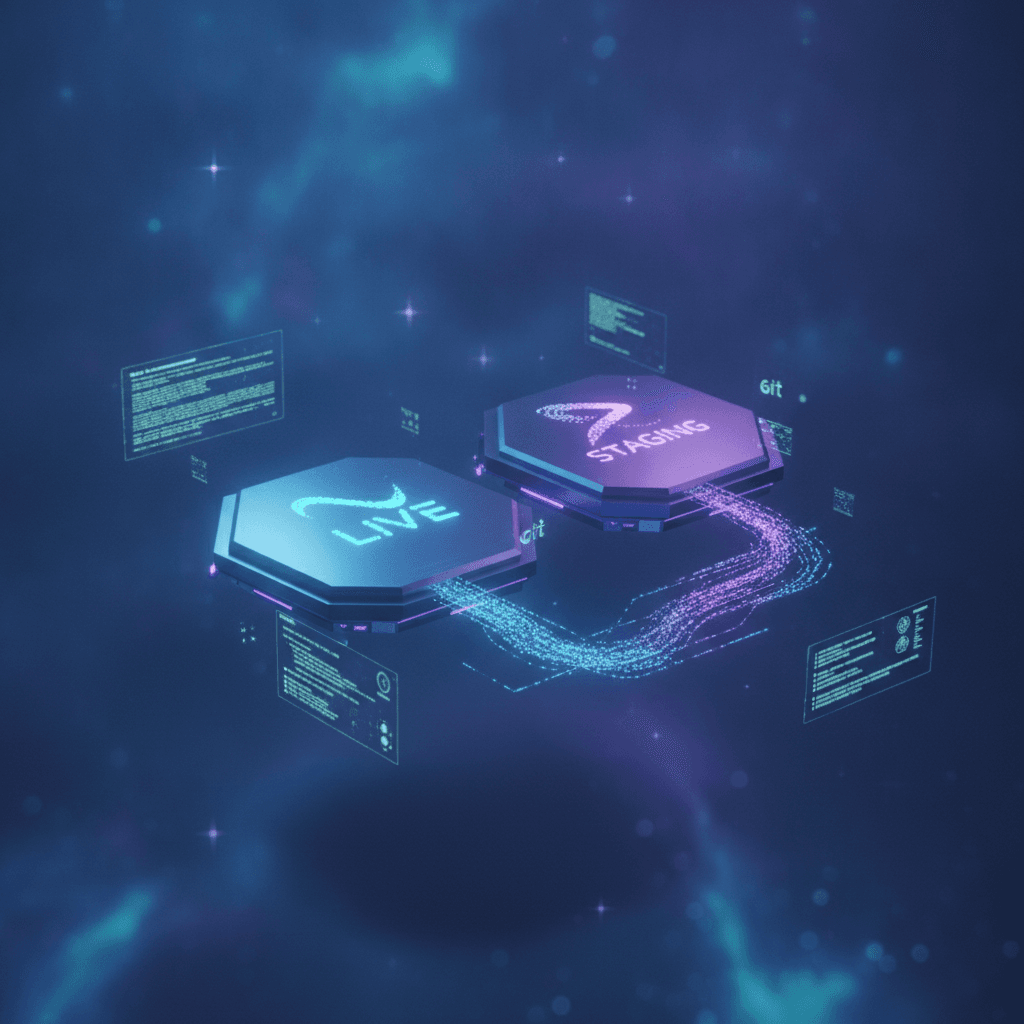
- Consider a staging environment: For critical sites, test updates safely on a clone.
Following these steps reduces error likelihood and offers a simple solution: restoring from a recent backup. This saves hours of frustration.
Diagnosing the Problem: Where to Look
If an update error occurs, diagnose the root cause. Most issues stem from conflicts between WordPress core and a theme, plugin, or hosting environment (e.g., outdated PHP). Pinpointing the exact source is key.
Start with your website's error logs, often accessible via your hosting control panel. These logs frequently contain specific error messages, pointing to a problematic file, plugin, or theme.
For advanced diagnosis, WordPress has a debugging mode. Activating it (by editing `wp-config.php` to `define('WP_DEBUG', true);`) can display errors or log them. Turn debugging off once resolved.
Step-by-Step Recovery Strategies
When an update error occurs, the quickest recovery is usually restoring your website from the backup created *before* the update. Your host might offer a one-click restore, or you can manually upload files and import your database. This returns your site to its working state.
If stuck in maintenance mode, manually fix it via FTP or your hosting's file manager. In the root directory, locate and delete the `.maintenance` file. Your site should immediately exit maintenance mode.
To identify a conflicting plugin or theme, disable them via FTP. Go to `wp-content/plugins` and rename each plugin folder one by one (e.g., `plugin-name` to `plugin-name_DISABLED`). Refresh your site after each. If it comes back online, that was the culprit. Do the same for your theme in `wp-content/themes` to activate a default theme.
Preventing Future Update Headaches
Proactive maintenance is your best defense. Make regular backups a habit. Keep WordPress core, themes, and plugins updated, methodically: plugins, then themes, then core. Choose reputable, well-maintained resources.
For critical websites, consider a staging environment. Test all updates and changes on a duplicate site before going live, catching potential issues safely. These practices ensure your WordPress site remains secure, functional, and performs optimally.
Sources & Further Reading
- Updating WordPress — WordPress.org
- Debugging in WordPress — WordPress.org
- WordPress — Wikipedia
- PHP — Wikipedia
- 500 Internal Server Error — MDN Web Docs